Why is it that when I create a recipe, nothing shows up as an option under the categories or tags?
You must create your own categories and your tag names before trying to add categories or tags to a recipe. Please see the question titled “How do I categorize and tag recipes?”
How do I categorize and tag recipes?
To create categories and tags:
1. Tap the Menu icon at the top left corner (Figure 5.1).

2. Select “Categories and Tags” from the Menu tab. Select the option you want to complete first (“Categories” or “Tags”). It will appear green (Figure 5.2).
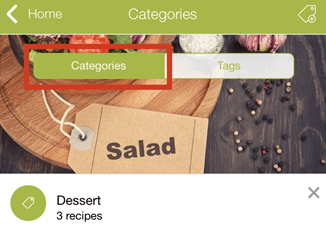
3. Tap the tag icon in the top left corner.
4. Type in the name of the category or tag you want.
5. Tap “Add.”
The new category or tag should now appear in the space below the image banner.
1. On the Home page, tap the recipe you want to delete.
2. Tap the plus-sign button (Figure 5.3).
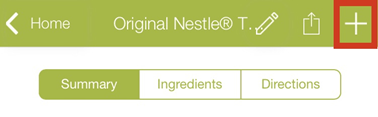
A pop-up box will appear with three options: add to shopping list, add to meal planner, or delete.
3. Select “Delete.”
Your recipe will be deleted, and you will be redirected to the Home page.
Can I sync my recipes between multiple devices?
Yes. You can sync, view, and manage your recipes on any of your connected devices.
Is there a maximum number of recipes that I can store on the app?
Yes. There is a maximum of 105 recipes allowed.
How do I add a friend and/or a friend’s recipe?
Currently, there is no “Add Friend” button or option available in the app. This is a known software glitch and will be addressed in the next available update. We appreciate your patience as we work to improve this.
This is a known software glitch and will be addressed in the next available update. We appreciate your patience as we work to improve this.
What is supposed to show up under “Meal Planner”?
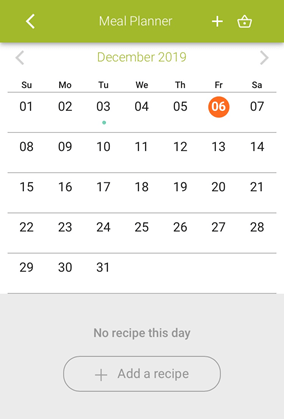
A calendar is meant to appear (Figure 5.4). Oftentimes on iOS, however, the Meal Planner screen will appear blank. This is a known software glitch and will be addressed in the next available update. We appreciate your patience as we work to improve this.
 My CookBook App User Manual